
How to start saving money
Lorem ipsum dolor sit amet, consectetur adipiscing elit lobortis arcu enim urna adipiscing praesent velit viverra sit semper lorem eu cursus vel hendrerit elementum morbi curabitur etiam nibh justo, lorem aliquet donec sed sit mi dignissim at ante massa mattis.
- Neque sodales ut etiam sit amet nisl purus non tellus orci ac auctor
- Adipiscing elit ut aliquam purus sit amet viverra suspendisse potent
- Mauris commodo quis imperdiet massa tincidunt nunc pulvinar
- Excepteur sint occaecat cupidatat non proident sunt in culpa qui officia
Why it is important to start saving
Vitae congue eu consequat ac felis placerat vestibulum lectus mauris ultrices cursus sit amet dictum sit amet justo donec enim diam porttitor lacus luctus accumsan tortor posuere praesent tristique magna sit amet purus gravida quis blandit turpis.

How much money should I save?
At risus viverra adipiscing at in tellus integer feugiat nisl pretium fusce id velit ut tortor sagittis orci a scelerisque purus semper eget at lectus urna duis convallis. porta nibh venenatis cras sed felis eget neque laoreet suspendisse interdum consectetur libero id faucibus nisl donec pretium vulputate sapien nec sagittis aliquam nunc lobortis mattis aliquam faucibus purus in.
- Neque sodales ut etiam sit amet nisl purus non tellus orci ac auctor
- Adipiscing elit ut aliquam purus sit amet viverra suspendisse potenti
- Mauris commodo quis imperdiet massa tincidunt nunc pulvinar
- Adipiscing elit ut aliquam purus sit amet viverra suspendisse potenti
What percentege of my income should go to savings?
Nisi quis eleifend quam adipiscing vitae aliquet bibendum enim facilisis gravida neque. Velit euismod in pellentesque massa placerat volutpat lacus laoreet non curabitur gravida odio aenean sed adipiscing diam donec adipiscing tristique risus. amet est placerat in egestas erat imperdiet sed euismod nisi.
“Nisi quis eleifend quam adipiscing vitae aliquet bibendum enim facilisis gravida neque velit euismod in pellentesque”
Do you have any comments? Share them with us on social media
Eget lorem dolor sed viverra ipsum nunc aliquet bibendum felis donec et odio pellentesque diam volutpat commodo sed egestas aliquam sem fringilla ut morbi tincidunt augue interdum velit euismod eu tincidunt tortor aliquam nulla facilisi aenean sed adipiscing diam donec adipiscing ut lectus arcu bibendum at varius vel pharetra nibh venenatis cras sed felis eget.
Export your trips as a CSV from your tracking app or GPS system, then import the file with Excel’s Data > From Text/CSV and fix the delimiter and column types in the preview. Once the data loads, make sure every row carries a date, miles driven, and a business purpose. Those three fields turn a raw export into a log you can defend at tax time.
TL;DR:
- For 2026 tax records, log each trip’s date, destination, business purpose, and miles; apply 72.5 cents per mile through June 30, then 76 cents.
- During CSV import, verify the delimiter, date locale, and column types; 03/04/2026 can mean March 4 or April 3, and later repairs risk affecting many rows.
- Compare business and personal mileage with odometer change, then investigate gaps, duplicate trips, blank purposes, or fuel receipts that do not match recorded travel.
- Use consistent vehicle names, purpose tags, and column headings, and preserve raw exports unedited so label changes do not break summaries or erase original records.
Table of Contents
- How do you export mileage from your tracking source?
- How do you import a CSV or XLSX file into Excel?
- How should you organize the spreadsheet so it is report-ready?
- What do you need to include when preparing a mileage deduction?
- What do you do when the export or import goes wrong?
- How do you use the Moto Watchdog API to send mileage data to Excel automatically?
- How can you schedule exports and automated mileage reports?
- How can you customize exports with geofencing alerts and trip details?
- How do you verify and reconcile exported mileage against vehicle logs and fuel receipts?
- How do you keep mileage data private and secure?
- Why consistent exports matter more than clever formulas
- Skip the monthly cleanup with subscription-free GPS tracking
- FAQ
- Sources
How do you export mileage from your tracking source?
Most mileage apps and GPS platforms follow the same pattern: you narrow the data first, then download it. Spending time on filters can save cleanup in Excel later.
Work through these steps before you click the download button:
- Pick a date range. A single tax year or quarter keeps the file manageable and easier to check.
- Filter by vehicle. If you run more than one vehicle, export each one on its own or make sure the file includes a vehicle ID column.
- Filter by trip type. Separate business from personal trips where your system allows it.
- Include notes and purpose fields. If the export has an option to add trip notes, turn it on. Excel cannot invent a business purpose that was never recorded.
- Choose Export or Download. Then pick CSV or XLSX.
CSV is often a convenient default because many spreadsheet programs and tracking tools support it. XLSX can keep formatting, though availability depends on the tracking tool.
Accounting tools work the same way. QuickBooks Online, for example, lets you download trips from Mileage as a CSV file that lands in your Downloads folder, and you can also export reports to Excel from the Reports menu. Self-employed users can export mileage logs as CSV files suited for tax programs or a tax preparer. If you want a deeper look at device-level exports, our practical guide to fleet tracking data export covers what a clean file should contain.
How do you import a CSV or XLSX file into Excel?
An XLSX file opens directly with a double click. A CSV deserves a few more careful clicks, because Excel guesses at delimiters and data types, and its guesses are often wrong for dates.
Microsoft documents the process in its guide to importing data from a CSV, HTML, or text file. Here is the short version:
- Open a blank workbook and go to Data > Get & Transform Data > From Text/CSV.
- Select your exported file and click Import.
- In the preview window, check the delimiter. Comma is common, but some exports use tabs or semicolons.
- Review each column’s detected data type. Set date columns to Date and mileage columns to Decimal Number.
- Click Load To and choose an existing worksheet or a new one.
- Save the workbook as an .xlsx file right away, and keep the original CSV untouched.
If everything lands in a single column, the delimiter was wrong. You can fix that after the fact with Data > Text to Columns, which Microsoft explains in its guide to the Convert Text to Columns Wizard. Choose Delimited, tick the right delimiter, and check the preview before finishing. Power Query offers the same result through a Split Column by delimiter step, as described in Microsoft’s page on splitting data into multiple columns.
Pro Tip: In the import preview, set the file origin and locale before you load. A date like 03/04/2026 can read as March 4 or April 3, and fixing that in the preview is far easier than repairing hundreds of rows afterward.
How should you organize the spreadsheet so it is report-ready?
A good mileage workbook can include a raw sheet, a cleaned sheet, and a summary sheet. The raw sheet holds the import exactly as it arrived. You never edit it. The cleaned sheet standardizes column names and fixes errors. The summary sheet totals everything by vehicle, month, and trip type.
Your cleaned sheet should include these columns:
- Date of each trip, in a single consistent format
- Start location and end location
- Business purpose or a business/personal flag
- Miles, or odometer start and end if your system records them
- Vehicle ID, so multiple vehicles never blur together
- Notes or receipt links for anything you may need to explain later
For totals, SUMIF handles simple cases such as “all business miles for vehicle A.” PivotTables handle the bigger picture, letting you drag vehicle, month, and purpose into a grid in a few clicks. SUMPRODUCT helps when you need to multiply miles by a rate in one formula.
If you would rather not build from scratch, Microsoft publishes mileage tracking templates for Excel with common columns and formulas built in. A standardized template with pre-built formulas also reduces manual errors in deduction calculations, which matters when your spreadsheet becomes a tax record.
What do you need to include when preparing a mileage deduction?
The IRS puts the burden of proof on you. Practitioner guidance from Virginia Commonwealth University procurement notes that adequate records need the date, destination, and business purpose of each trip, plus total miles. A raw export that lacks those fields risks a disallowed deduction, so add any missing columns and annotate the trips before you rely on the file.
Rates change during the year, so apply the one that matches each trip’s date.
As of 2026, the IRS standard mileage rate for business use is 72.5 cents per mile for January 1 through June 30, and 76 cents per mile for July 1 through December 31. That split means a single flat rate applied to the whole year will be wrong.
Here is a worked example with illustrative numbers. Say you drove 1,000 business miles in March and 800 in September. The March trips earn 1,000 × $0.725 = $725. The September trips earn 800 × $0.76 = $608. Your estimated deduction is $1,333.
In Excel, add a Rate column that returns 0.725 or 0.76 based on the trip date, then multiply it by miles. Also remember that choosing the standard rate over actual expenses is a consequential decision, and some rules, such as those for leased cars, can limit which method you may use in later years.
What do you do when the export or import goes wrong?
Most problems come down to delimiters, data types, or missing fields. These quick fixes cover the usual cases:
- Everything sits in one column. Re-import and choose the correct delimiter, or run Text to Columns on the affected column. Microsoft’s guide to importing and exporting text files walks through both paths.
- Excel opens in Protected View. Click Enable Editing once you trust the source. If the file came from an unknown sender, scan it before you enable anything.
- Dates or miles convert incorrectly. Set the column type during import, or coerce values afterward with the VALUE or TEXT functions.
- The export lacks required fields. Add the columns yourself and fill in purpose and destination before you rely on the log for a deduction.
- The download button is missing or the CSV will not open. Try re-exporting and check your filters. Support documentation, such as this QuickBooks Community thread, shows that a temporary browser issue is often the cause.
How do you use the Moto Watchdog API to send mileage data to Excel automatically?
Manual exports work, but they repeat every month. If you manage a fleet, programmatic access removes that chore. We offer API access for business customers, so your trip and mileage records can flow into your own reporting without someone clicking Download each time.
The process depends on the API documentation and your reporting needs. You can transform the response into rows and columns.
Excel can work with data from an API. Power Query includes a From Web connector that can import data into a table. You can set data types and rename columns, then refresh the query as needed.
Keep these habits in mind:
- Store your API key somewhere private, never inside a shared workbook.
- Request a defined date range rather than everything, so refreshes stay fast.
- Load the results into your raw sheet and leave the cleaned and summary sheets to formulas.
For ideas on moving trip data into other systems after Excel, our article on fleet GPS data integration examples shows common patterns. Current API pricing details are on our API page.
How can you schedule exports and automated mileage reports?
The goal of a schedule is simple: the same file, in the same format, on the same day, every period. Consistency matters more than frequency. A monthly export you actually do beats a weekly one you forget.
You have three practical routes. One option is a calendar routine. Set a recurring reminder for the first business day of each month, export the previous month’s trips with identical filters, and save the file with a predictable name such as vehicle-A-2026-03.csv.
Another route is a Power Query refresh. If your data arrives through the API or sits in a folder, build the query once and press Refresh All each month. Power Query can also combine every CSV in a folder into one table, which suits a fleet that archives one file per month.
A further route is scripted automation through Power Automate or a scheduled task that calls the API and drops a file in a shared location. This takes more setup, but it runs without you.
Whichever route you choose, follow a few rules:
- Keep every raw export in an archive folder, unedited.
- Use identical column names every period so your queries never break.
- Note the export date inside the file name, so you can tell which version a figure came from.
Quarterly works too, especially for estimated tax payments. Match your cadence to the dates you actually need the numbers.
How can you customize exports with geofencing alerts and trip details?
A bare list of trips tells you how far a vehicle went. Adding context tells you why, and that context is what makes a log persuasive. Moto Watchdog devices support customizable geofencing alerts, trip and mileage reporting, and idle time tracking, and each of these can enrich your spreadsheet.
Start by deciding which details you need on every row. For tax records, that is the date, miles, destination, and purpose. For fleet oversight, add idle time, trip start and stop times, and the vehicle ID. For job-site work, geofence events show when a vehicle entered or left a location, which backs up a stated destination.
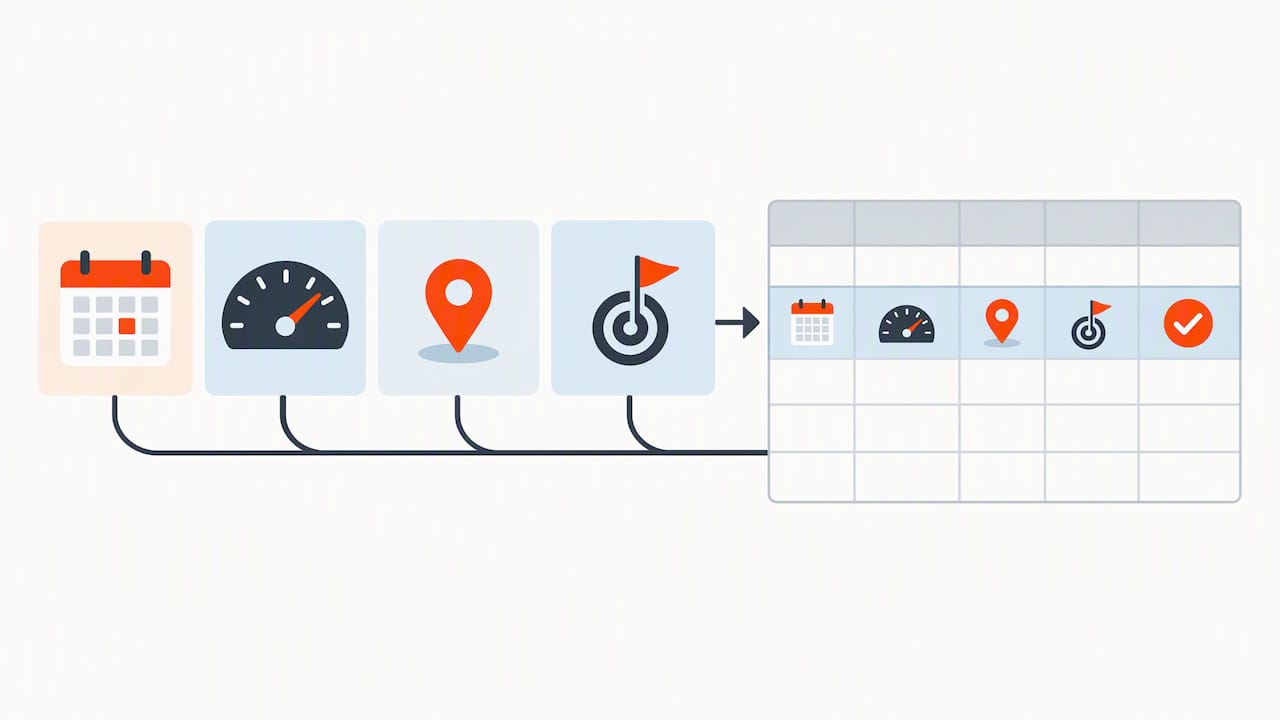
In Excel, treat geofence alerts as a second table rather than cramming them into the trip list. Give both tables a shared key, such as vehicle ID plus date. Then use a lookup formula or a Power Query merge to attach the nearest alert to each trip. A trip to a client site, matched to a geofence entry at that site’s address, becomes much harder to dispute.
A few practical suggestions:
- Name your geofences after real destinations, such as “Smith Residential Job,” so the alert text doubles as a destination note.
- Add a Purpose column and fill it from the geofence name where possible, saving manual typing.
- Keep alert data on its own sheet, and summarize it with a PivotTable by location and month.
The more of this context your device records automatically, the less you rely on memory at the end of the year.
How do you verify and reconcile exported mileage against vehicle logs and fuel receipts?
An export is only as trustworthy as your ability to check it. Reconciliation takes a short session and catches the errors that cause trouble later.
Begin with odometer readings. If your records include a start and end reading for the period, subtract them to get total miles driven. Your exported business and personal miles should add up close to that number. A large gap means missing trips, duplicated rows, or a vehicle that was tracked only part of the time.
Next, compare against fuel receipts. Receipts carry a date and a location, so you can match each fill-up to a trip on that day. A fill-up in a city where your log shows no trip is a signal to investigate. Likewise, very low fuel purchases against high claimed miles deserve a second look.
Then scan the data itself:
- Sort by miles and inspect the largest and smallest values for typos.
- Use conditional formatting to flag duplicate dates and start locations.
- Filter for blank purpose cells and fill them before you finalize anything.
- Compare monthly totals, since a month with no trips usually means a gap in recording, not a month off.
Record what you changed and why in a Notes column. If a trip was corrected, say so. An honest, annotated log reads as careful. A suspiciously perfect one invites questions. Reconcile monthly while your memory is fresh, and the year-end task shrinks to a quick review.
How do you keep mileage data private and secure?
Mileage logs reveal where you live, where you work, and when you are away from home. That is sensitive, so handle it like financial information.
Limit what you export in the first place. If you only need business trips, filter out personal ones before you download. Fewer rows means less exposure. When you do hold a full export, store it in a folder with restricted access rather than on a shared desktop.
Protect the workbook itself. Excel lets you set a password to open a file under File > Info > Protect Workbook. For files you send to a tax preparer, use an encrypted attachment or a secure sharing link, not a plain email.
Good habits go a long way:
- Never leave API keys inside a workbook. Store them in a password manager.
- Delete old exports from your Downloads folder once they are archived securely.
- Keep your archive in an encrypted drive or a cloud folder with additional sign-in security.
- Remove home addresses from files you share if the recipient does not need them.
- Review who holds access to your tracking account and revoke accounts that are no longer needed.
Be cautious with files from unknown sources. Enable editing only after you trust the origin, and treat unexpected spreadsheets with macros as suspect. Keep a retention plan too: hold on to records for as long as your tax situation requires, then delete them properly.
Why consistent exports matter more than clever formulas
After watching how people handle mileage records, I hold one firm opinion: the formula is rarely the problem. The inconsistency is. People build impressive PivotTables on top of data that changes shape every month, then spend their weekends repairing it.
Pick a vehicle naming scheme and never deviate. “Truck 1” and “truck-1” are two different vehicles to Excel. Choose a short list of purpose tags, such as Client Visit, Supply Run, and Job Site, and use only those. Filtering and totaling become trivial when the labels match.
Set a cadence and treat it as non-negotiable. Monthly or quarterly, the interval matters less than the habit. Keep every raw export in an archive, even after you clean it, because the original is your proof that nothing was altered.
Finally, favor tools that make export a built-in feature. Exportable trip logs and API access exist so that reporting stops being a project and becomes a routine. When the data leaves your device in a clean, consistent form, Excel has very little left to fix.
— Louis
Skip the monthly cleanup with subscription-free GPS tracking
If you would rather have mileage data that arrives ready to use, our Trackers record trips and mileage automatically and keep the data exportable for your fleet or personal reporting. There are no monthly fees, and business customers can learn about our API access. Our subscription-free GPS explainer shows how the model works for a business.
- Trip and mileage reporting you can export for taxes or fleet records
- Customizable geofencing alerts and idle time tracking
- Trackers from $124.99 one-time, with no recurring subscription
- API access for business customers; current pricing details are on our API page
Browse the Trackers or talk to us about API access for your fleet to get started.
This article is general information, not a substitute for advice from a qualified financial advisor. Consult a qualified financial professional about your own circumstances before acting on anything here.
FAQ
How do I make a mileage spreadsheet in Excel?
Create columns for date, start location, end location, business purpose, miles, and vehicle ID. Add a rate column and multiply it by miles to estimate the deduction. A ready-made Microsoft mileage template gives you these columns and formulas to start from.
Can I download a free Excel template for a car mileage tracker?
Yes. Microsoft offers mileage tracking templates for Excel, and Expensify publishes a mileage tracker template with pre-built formulas. Templates with built-in formulas help reduce manual errors.
How do I export data from QuickBooks to Excel?
In QuickBooks Online, open the Reports menu and choose Export to Excel, or use the Mileage page to download trips as a CSV file. QuickBooks Self-Employed also lets you export mileage logs as CSV. Open the file in Excel with Data > From Text/CSV.
What is the easiest way to track mileage for work purposes?
Use a GPS tracker or app that records trips automatically, so you are not relying on memory. Then export the data to Excel and add a business purpose to each trip. The IRS expects the date, destination, purpose, and miles for each one.